



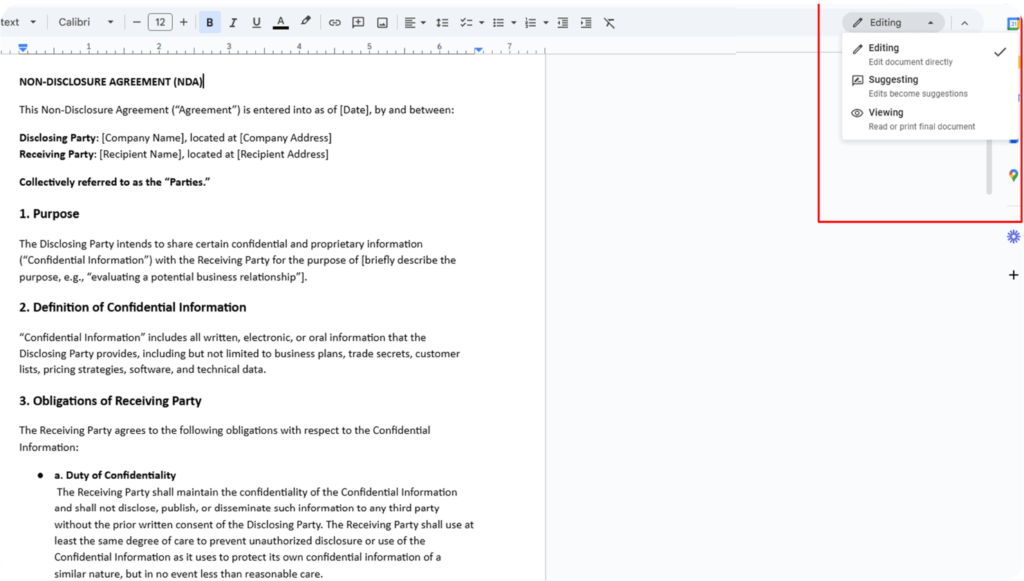
- Redlining in Google Docs is done through Suggesting mode, which tracks every insertion, deletion, and formatting change with color-coded markup tied to each collaborator’s name. To enable it, click the pencil icon in the top-right corner and select “Suggesting.”
- The seven steps to redline a Google Doc are: open the document, enable Suggesting mode, make inline edits, add comments, accept or reject changes, review version history, and finalize the document.
Redlining in Google Docs uses the built-in Suggesting mode to track every edit, comment, and revision across collaborators in real time. Each change appears color-coded and attributed to the person who made it, giving both parties a clear record of proposed modifications.
Google Docs is a go-to tool for many teams, but are you using it effectively for contract redlining? Whether you’re negotiating an NDA, reviewing a Master Services Agreement, or revising terms with a vendor, knowing how to redline in Google Docs ensures clarity, accountability, and faster turnarounds. Google Docs handles basic redlining well for NDAs, vendor agreements, and service contracts. However, legal teams managing high-volume negotiations often hit limitations around version control, clause libraries, and approval workflows.
Redlining helps ensure that every proposed change is visible, traceable, and clearly communicated between parties.
In this guide, you will learn the seven steps to redline a contract in Google Docs, the challenges to watch for, and when to consider dedicated contract management software.
What does it mean to redline a document?
Redlining a document is the process of marking up proposed changes to a contract or agreement so that every edit (insertions, deletions, and comments) is visible to all parties involved. The term originates from the legal practice of using red ink to annotate printed contracts.
Today, redlining is done digitally using tools like Google Docs Suggesting mode, Microsoft Word Track Changes, or dedicated contract redline software. Redlining a document ensures that every proposed change is visible, traceable, and attributable to the person who made the edit. In a January 2024 poll of 1,029 contracts professionals, 92% reported preferring Microsoft Word for redline exchanges (ContractNerds), though Google Docs is gaining adoption for its free real-time collaboration.
How does contract management software improve Google Docs redlining?
Traditional way: Redlining contracts used to be tedious. Legal teams would print agreements, manually mark them up, and scan or email versions back and forth. Every change had to be reviewed line by line – often across multiple, unorganized versions.
Digital workflows: Today, tools like Google Docs have entirely transformed the process. Teams can now redline in Google Docs by switching to Suggesting mode, leaving threaded comments, and tracking every change in real time without losing the original version or context.
| Feature | Google Docs (Suggesting mode) | Google Docs + CLM software |
|---|---|---|
| Real-time editing | Yes. Multiple collaborators can edit simultaneously | Yes. Same real-time editing with added workflow controls |
| Track changes | Basic. Suggesting mode tracks insertions and deletions | Advanced. Full version history with clause-level change tracking |
| Clause library | Not available. Teams copy-paste from past documents | Built-in. Pull pre-approved clauses with one click |
| Approval workflows | Manual. Requires email or Slack follow-ups | Automated. Route contracts through legal, finance, and executive review stages |
| Metadata tracking | Manual. Tracked in separate spreadsheets | Automatic. Extracts contract value, counterparty, renewal dates |
| Document security | Basic sharing permissions only | Legal-grade access control, watermarking, audit trails |
| Redline comparison | Requires manual side-by-side review via version history | Automated comparison showing exact differences between versions |
Digital redlining simplifies the process and brings much-needed clarity to your contracts, especially when things get complex.
AI is reducing contract review time by automating clause comparison, risk detection, and redline suggestions that previously required manual legal review. According to a 2025 report by World Commerce & Contracting, 42% of organizations are now using AI in their contracting processes, up from 30% the previous year. AI-powered redlining tool can analyze contract language against pre-approved clause libraries and flag deviations in seconds rather than hours.
How do you redline a document in Google Docs?
To redline a document in Google Docs, switch to Suggesting mode by clicking the pencil icon in the top-right corner and selecting “Suggesting” from the dropdown. Every edit you make will appear as a tracked suggestion with color-coded markup tied to your name. Collaborators can accept, reject, or comment on each change individually. The full process takes seven steps: open the document, enable Suggesting mode, make inline edits, add comments, accept or reject changes, review version history, and finalize.
Follow these 7 steps to redline contracts in a Google document:
Step 1: Open the document
To redline Google Docs, open the document, switch to Suggesting mode, and make your edits. Every addition, deletion, and formatting change is tracked automatically so all collaborators can review, accept, or reject each change. Open the Google document you want to redline. Ensure all collaborators have the necessary editing permissions or can suggest or comment, based on their roles. The process for how to redline a document in Google Docs follows the same seven steps whether you are reviewing an NDA, MSA, vendor agreement, or any other contract type. Giving other collaborators the right level of access prevents accidental direct changes.
Step 2: Enable suggesting mode
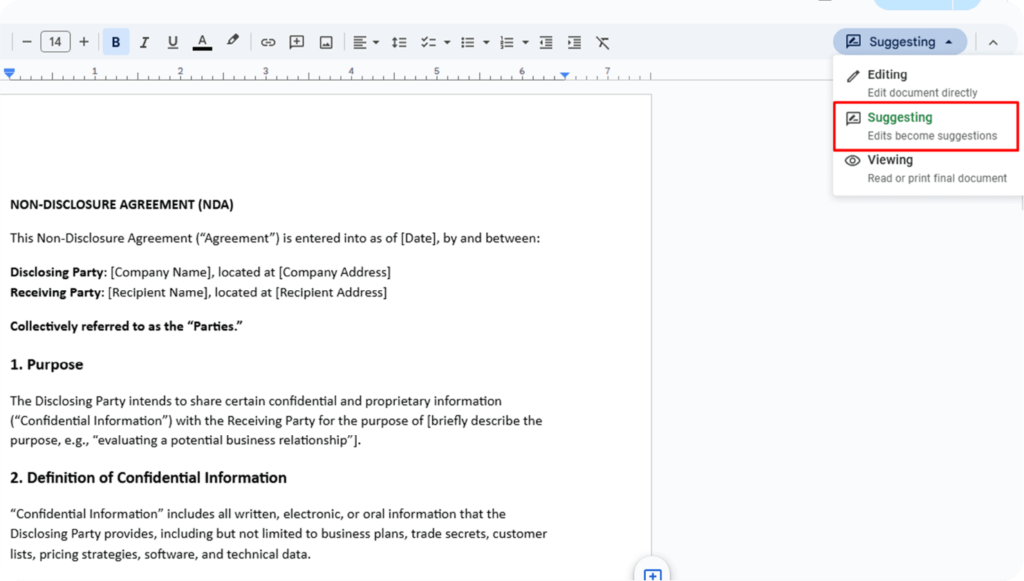
To begin redlining, click on the pencil icon in the upper right corner of the document. From the drop down menu, select “Suggesting.” This is the core feature that powers Google Docs redline tracking, and every edit you make from this point forward will appear as a colored suggestion rather than a direct change. Any edits you make in this mode will appear as proposed changes, not direct edits.
Suggesting mode helps track changes in Google Docs, but it lacks the control and automation found in contract negotiation software, which supports approval routing, clause-level contract tracking, and legal review flows.
Once you’ve successfully activated Suggesting mode, your edits will be logged with your name and timestamp.
Step 3. Make in-line edits
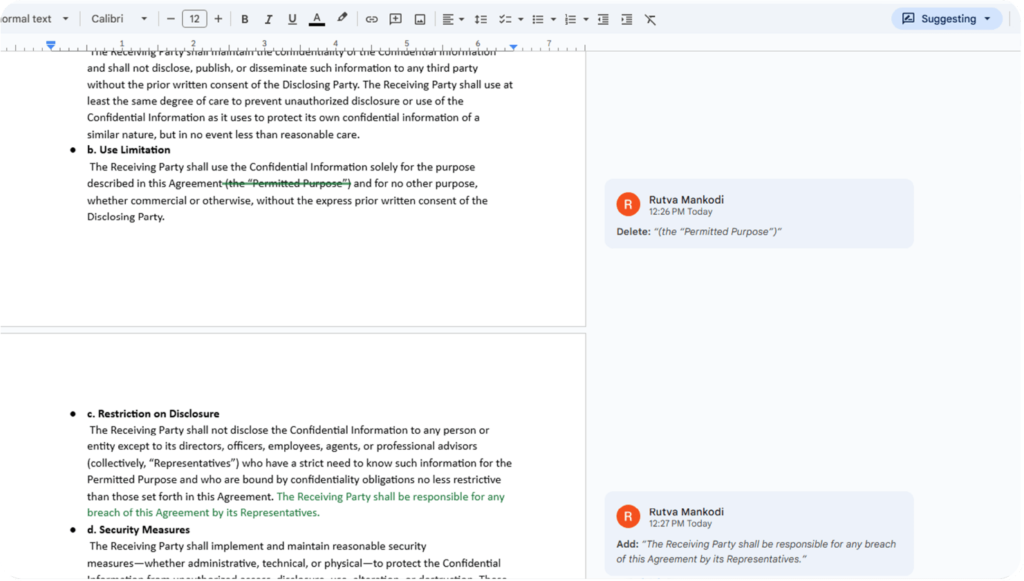
In Suggesting mode, changes will be visible to everyone. For example:
- To add text: Type new content. It will be color-coded and tagged as a suggestion.
- To delete: Highlight text and press delete or backspace—it will be struck through.
- To modify: Edit directly. Your version appears as a tracked suggestion.
Teammates can then review suggestions and accept, reject, or leave comments for more detail or clarification before making edits.
Step 4. Add comments
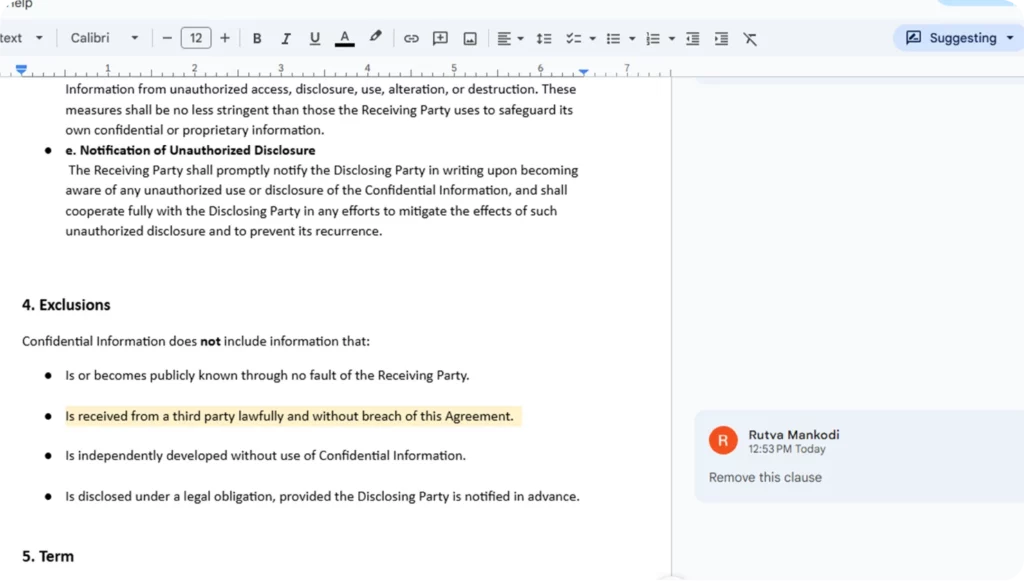
If you need to explain a change or ask for clarification, highlight the relevant text and click the “Comment” button in the toolbar, or right-click and select “Comment.” A comment box will appear on the right side, allowing you to provide detailed feedback. These inline modifications are called redline edits because they appear in a different color, making every change immediately visible to all collaborators. Redline comments allow reviewers to annotate specific text without changing the document directly, making them useful when you need to flag an issue without proposing an edit.
Once addressed, use the “Resolve” button to mark it as a resolved comment, keeping your collaboration space clean and updated.
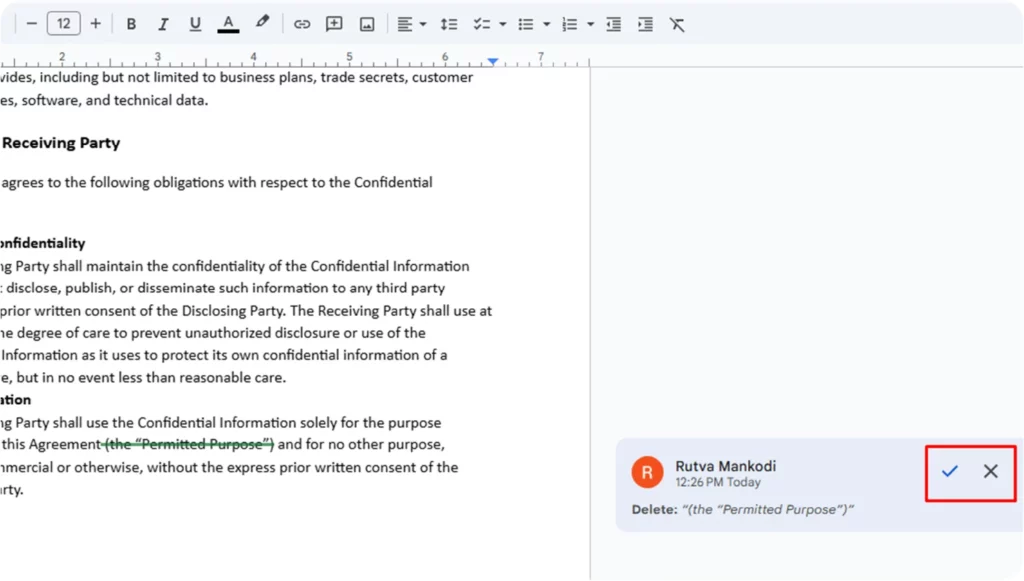
Step 5. Accept or reject changes
As the document owner or a collaborator, you can accept or reject each suggested change:
- Click the checkmark to accept.
- Click the “X” to reject. Once accepted, the suggestion is permanently added to the document. Rejected changes are removed.
Accepted suggestions become part of the document; rejected ones are removed. This keeps all the changes you approve intentional and documented.
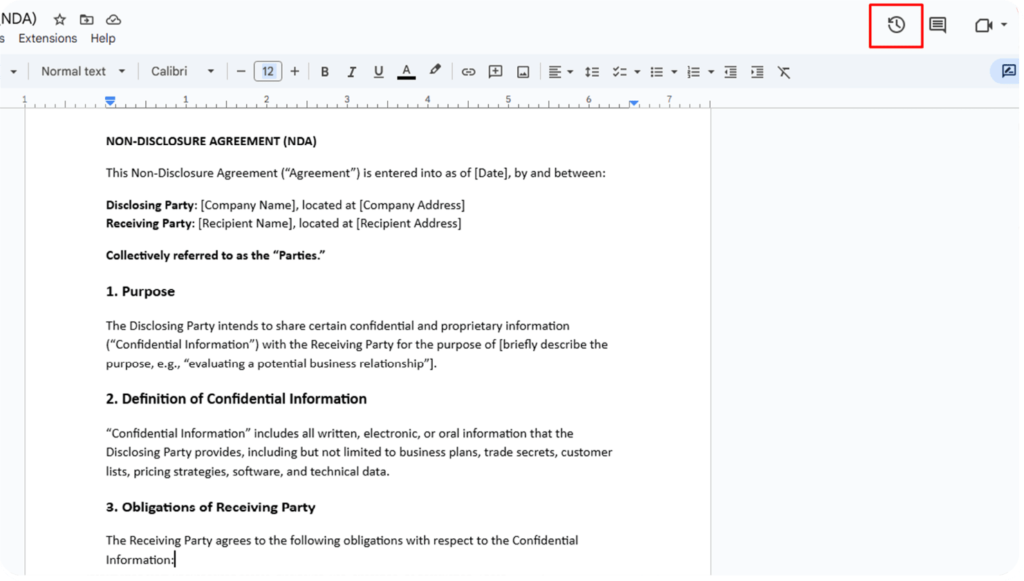
Step 6. Track and review all the edits
Go to File → Version History → See version history to view past edits. This shows who made what changes and when especially useful if you need to revert to a previous Google Docs version or track further changes.
Step 7. Finalize the document
After accepting or rejecting all the comments and suggestions:
- Switch back to editing mode or viewing mode
- Apply any final formatting
- Save or export the final version as a PDF or DOCX
How does contract management software improve Google Docs redlining?
Document redline software like HyperStart adds automated version comparison, clause libraries, and approval workflows on top of Google Docs. HyperStart CLM brings automation, clause libraries, and audit-ready tracking to your existing documents. Save time, reduce risk, and accelerate every contract.
Book a DemoCan you redline a contract in Google Docs without Suggesting mode?
Yes, you can mark up a Google Doc without Suggesting mode by using comments only. Highlight the text you want to flag, click the “+” icon on the right margin, and type your proposed change or feedback in the comment box. The original text stays unchanged, and collaborators can reply to or resolve each comment independently.
The comments-only approach works for lighter reviews where you want to provide feedback without altering the document text. For example, a reviewer might comment “Consider replacing this clause with our standard indemnification language” rather than editing the clause directly.
However, comments-only redlining has a significant drawback: it does not produce a tracked markup of actual text changes. When two parties need to compare the original document against proposed edits side by side, Suggesting mode is the better option because it creates a visible record of every insertion and deletion.
What are the limitations of redlining in Google Docs?
Google Docs lacks six features that legal teams need for contract redlining: legal-grade change tracking precision, a built-in clause library, automated approval workflows, contract metadata tracking, protection against uncontrolled edits when a collaborator forgets Suggesting mode, and document-level security controls like watermarking and section-based access. Gartner estimates that legal teams lose $2.7 million per year on non-strategic tasks, including manual redlining, version control, and low-value reviews.
While Google Docs is a convenient tool for everyday collaboration, it has several limitations that make it unsuitable for handling legal contract reviews and contract negotiations at scale. Here’s why legal teams often struggle when relying on G-docs alone:
1. Lack of legal-grade redlining capabilities
While suggestion mode helps track changes in Google, it lacks the detail and control needed for legal redlining. For instance, it doesn’t catch subtle formatting shifts or complex clause rewrites like Microsoft Word’s Track Changes. Word also offers more control over what edits get tracked.
Without such precision, even minor missed edits can have significant legal implications.
Also, if someone makes direct changes outside Suggesting mode, those edits go live without review, a major risk.
2. No built-in clause library or standard templates
One of the biggest time drains for legal professionals is repeatedly searching for previously used language or legal clauses. Google Docs doesn’t allow teams to pull from a pre-approved clause library. Legal professionals often resort to copy-pasting from past Microsoft Word documents or scattered files, which introduces inconsistency and risks using outdated language.
Legal teams spend more time reworking contracts without standardized language and less time moving deals forward.
3. Missing approval workflows for legal review
Contracts typically go through several layers of review legal, finance, compliance, executive teams, and sometimes third-party reviewers. Google Docs lacks a built-in workflow system to route contracts through legal, finance, or executive teams. In contrast, a modern CLM supports structured contract approval processes, ensuring the right people review the right clauses—at the right time.
There’s no automated notification, status tracking, or centralized dashboard to see where the contract stands. As a result, approvals often get delayed or lost in long email threads. Legal teams end up chasing updates manually, which slows down the contract lifecycle and increases frustration for everyone involved.
4. Inability to track key contract metadata
Metadata is essential for contract management. Google Docs doesn’t support capturing key contract metadata like value, renewal terms, or counterparty names. Without proper contract data management, this leads to missed renewals, audit issues, and reporting gaps. In Google Docs, all of this has to be managed manually usually in separate spreadsheets or email chains.
This disconnect makes it difficult to organize, report on, or search for contracts based on specific terms. It also puts teams at risk of missing renewals or obligations because there’s no centralized system keeping track of key details.
5. Risk of undocumented or uncontrolled changes
Google Docs allows real-time collaboration but that can become a risk if not handled properly. If even one team member forgets to switch to Suggesting mode, their edits go live without tracking. There’s also no way to lock down certain sections or set reviewer-only roles unless you restrict access completely.
This means unauthorized or accidental changes can sneak into the contract, especially in large teams or external collaborations. Without version control or a proper audit trail, it’s hard to trace who made what change and when creating different versions. Which leads to serious problems for legal teams needing accountability. Research from the Journal of Contract Management confirms that 71% of businesses cannot locate at least 10% of their contracts, highlighting a critical visibility gap.
6. Basic sharing settings with limited document security
Security is a major concern when dealing with contracts, especially those containing confidential or sensitive information. While Google Docs offers basic sharing settings like viewing, commenting, or editing it doesn’t go far enough for legal-grade protection.
There are no features for watermarking, redacting sensitive data, controlling access by document section, or tracking document downloads. External users may accidentally be given full edit rights, or internal users might access documents they shouldn’t. For legal teams who need tight control, audit logs, and compliance readiness, these limitations can be a dealbreaker.
How contract management software helps in Google Docs redlining
Many contract management platforms now integrate with Google Docs to give legal teams the best of both worlds, familiar editing tools combined with legal-grade functionality.
Here’s how the integration works:
| Feature | Google Docs Alone | With CLM integration |
| Real-time editing |  Live collaboration Live collaboration | Real-time editing |
| Track changes | Basic (Suggesting mode) | Advanced with full version history |
| Clause library |  Not available Not available | Pull pre-approved clauses directly |
| Approval workflows | Manual via email or Slack | Automated, trackable steps |
| Metadata capture | Manual, often tracked in spreadsheets | Automatically extracts contract data |
| Document security | Basic sharing settings | Legal-grade access control and audit trails |
How Google Docs integrates with CLM platforms for contract redlining
Embedding Google Docs within the contract management software, teams can redline documents using Google’s interface while benefiting from advanced legal features. Here’s how:
- Redline in Google Docs as usual using Suggesting mode.
- Use the clause library to insert standardized, compliant language with one click.
- Trigger automated workflows to route the document for legal, finance, and executive reviews.
- Track all versions and who made what change with a built-in audit trail.
- Capture metadata directly from the document to a searchable repository.
- Secure the contract with role-based permissions and section-specific access.
With the right contract management software, you can collaborate in Google Docs while keeping full control over approvals, version history, and compliance.
Frequently asked questions
- Always use Suggesting mode – never edit directly
- Tag collaborators with @mentions and assign comments
- Be clear and direct in comments (e.g., "Please rephrase Clause 2.3 to..." instead of "Unclear")
- Regularly resolve completed comments to reduce clutter
- Summarize major changes in a final comment before marking the doc as complete
- Use consistent formatting and heading structure for professionalism




![A Guide to Contract Redlining [Challenges + Solutions + Top Software Tools]](https://www.hyperstart.com/wp-content/uploads/2024/07/Blog-82-purple-scaled.webp)