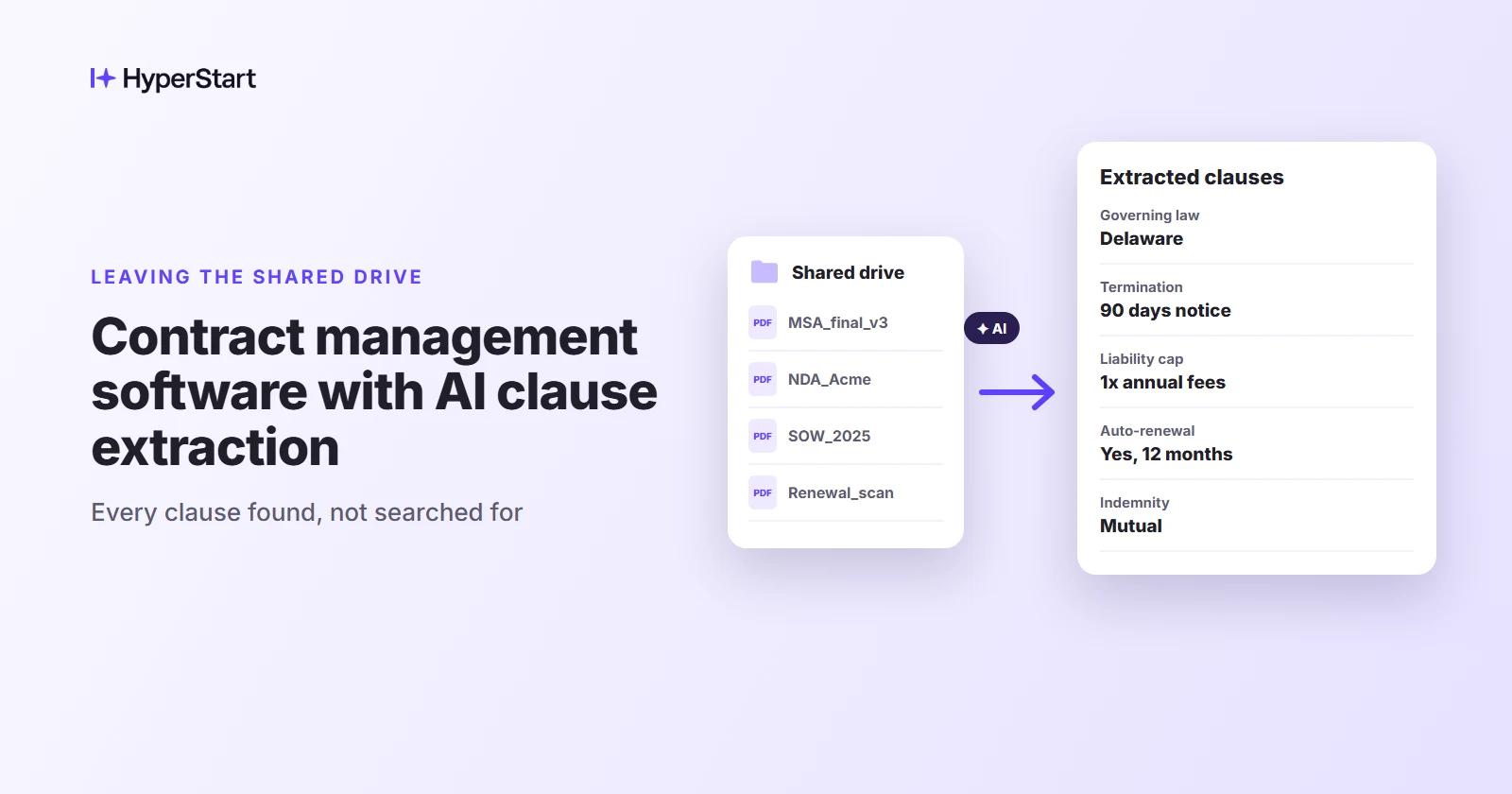



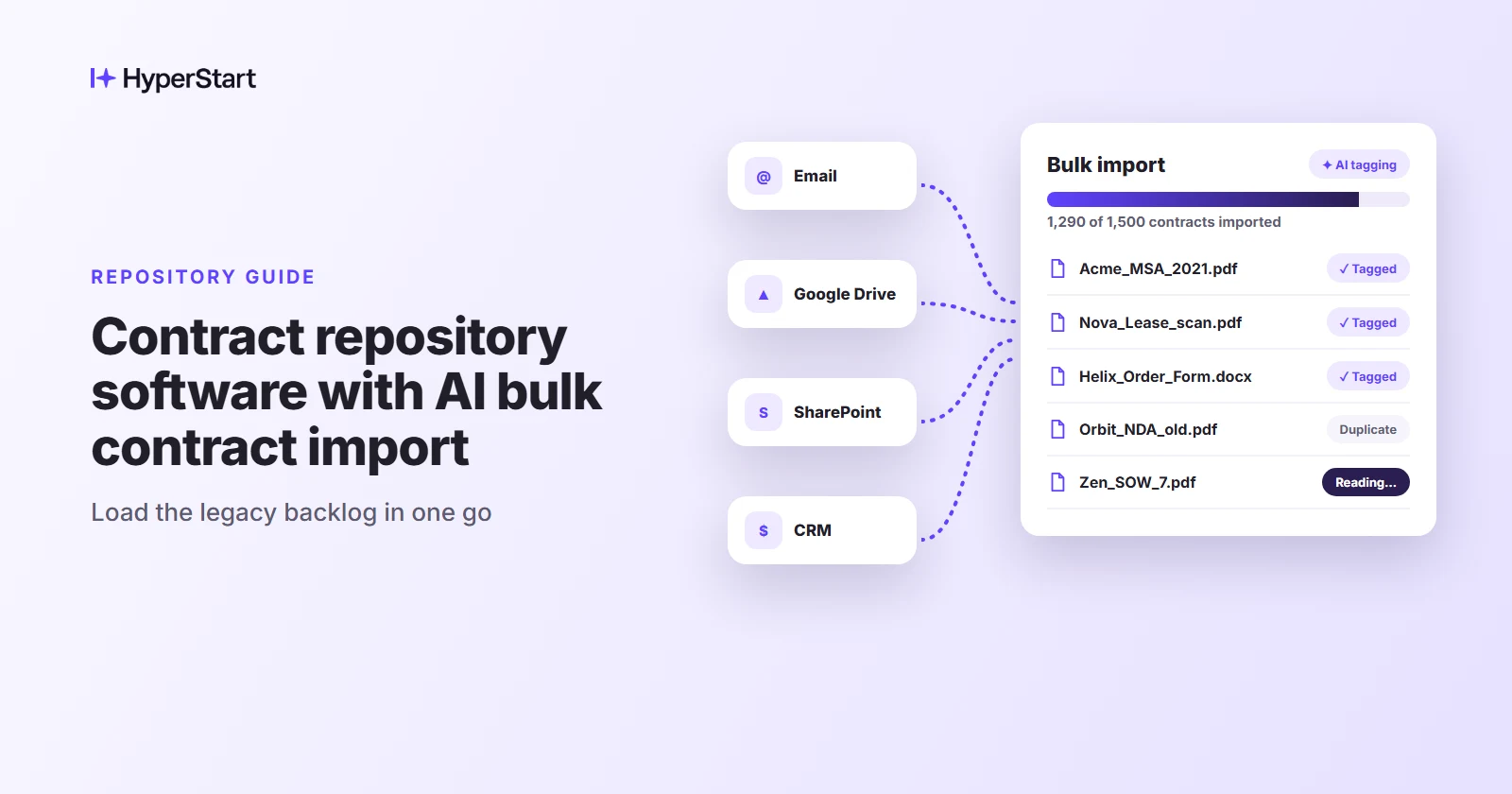
Contract repository software with AI bulk contract import loads a backlog of legacy contracts in one go, straight from the places they already live.
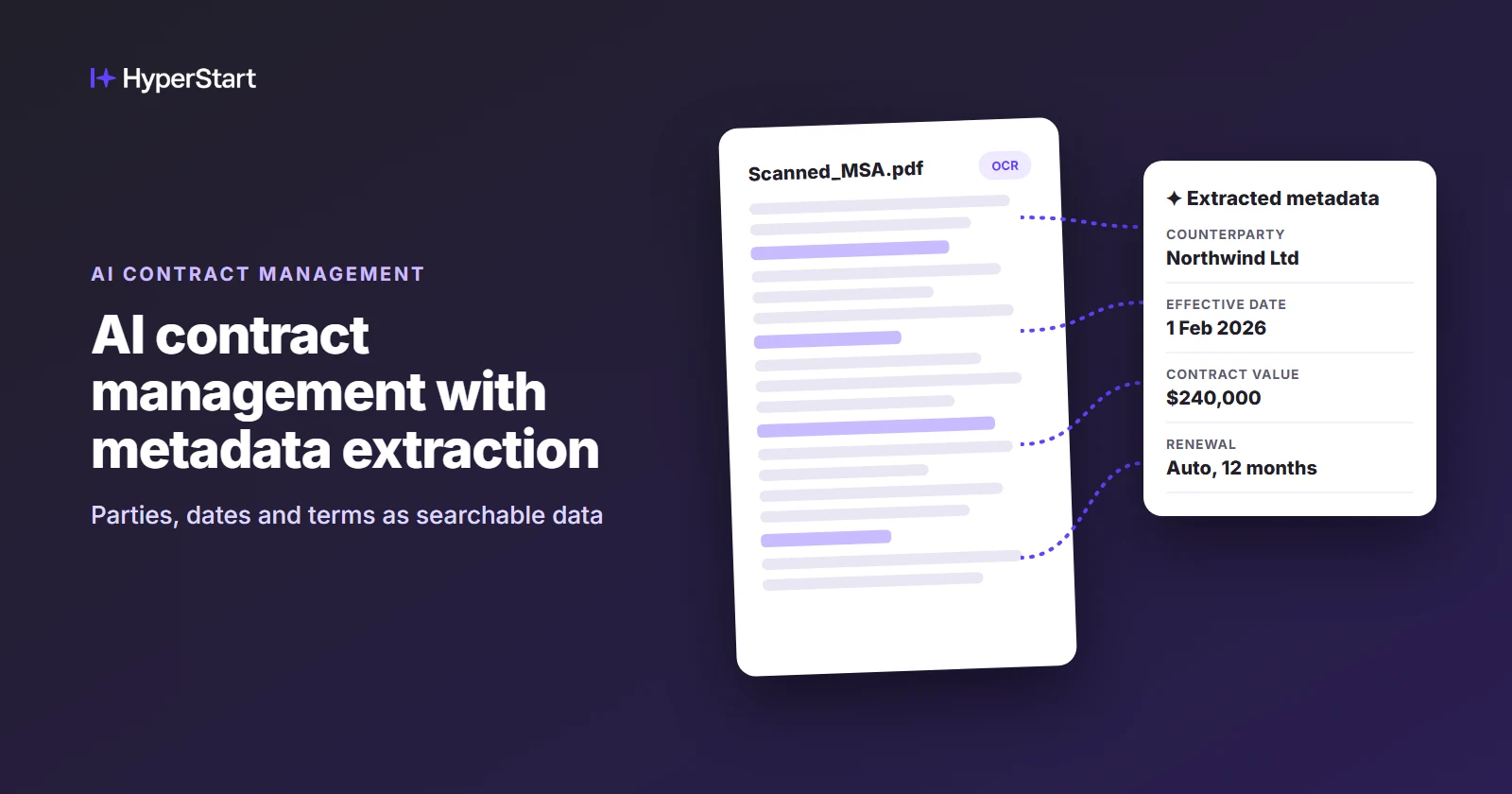
OCR and AI then read each file and fill in its dates, parties and terms, so nobody keys them in by hand.
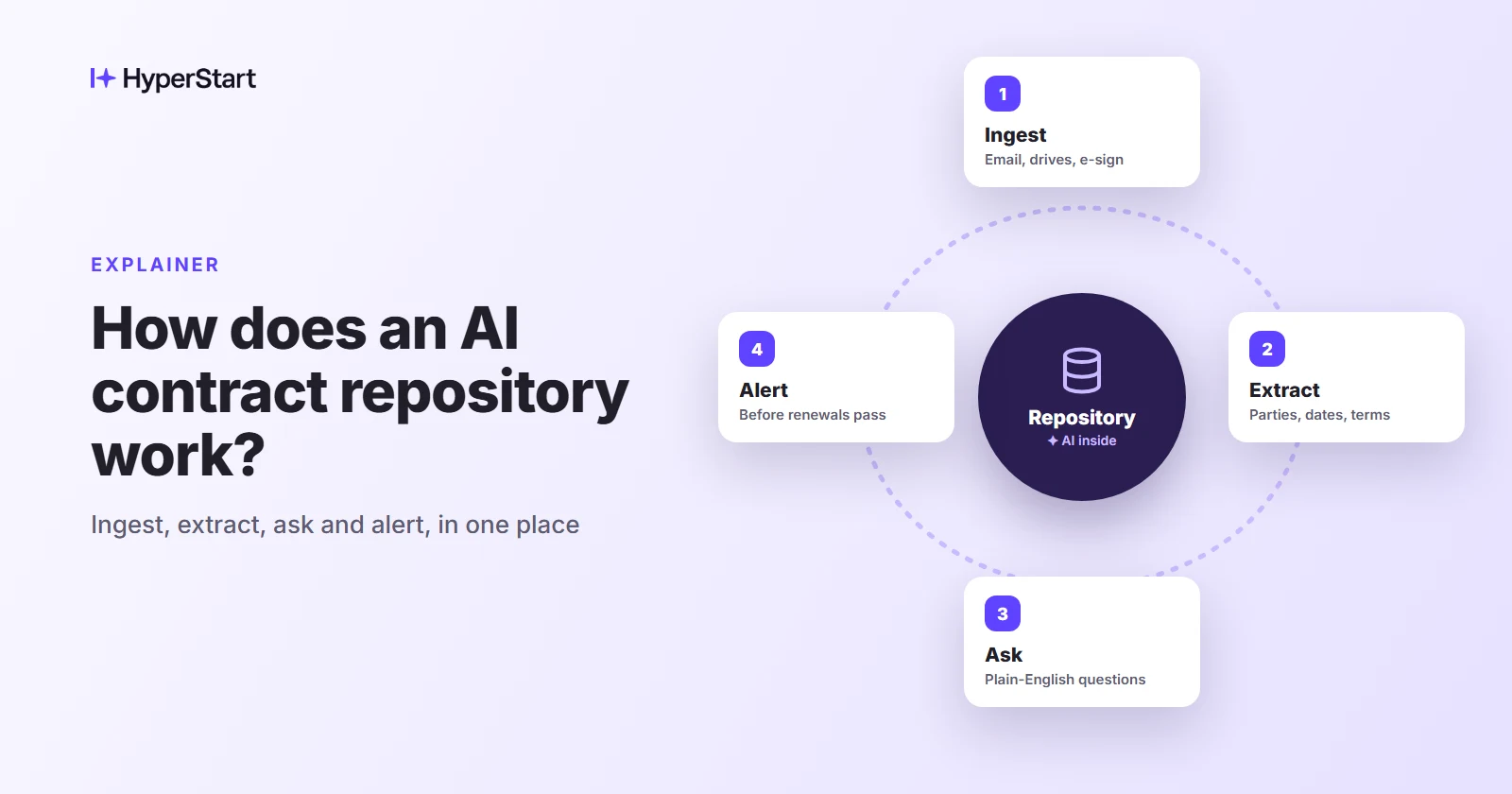
This guide explains how bulk import works and what metadata to extract. It also covers how to plan a migration, what to test in any tool and the import mistake that causes the most trouble later.
- Bulk import pulls contracts from email, cloud drives and the CRM instead of one upload at a time.
- AI tagging as files land replaces the hand-built tracking spreadsheet.
- OCR during import makes wet-signed scans searchable and taggable along with digital files.
- A review step on renewal, notice and termination dates should come before reminders switch on.
- Amendments should join their parent agreement during import, not sit beside it in a folder.
What AI bulk import does in a contract repository
Bulk import loads many contracts into a repository at once instead of uploading them one by one. The AI part is what happens next: as each file lands, AI reads it and fills structured fields.
Those fields usually include key terms, dates, parties, obligations and clauses. Together they turn a pile of PDFs into a contract repository you can search, filter and track. Without AI, a bulk import only moves the files. Someone still has to read each one.
Why a hand-built contract tracker does not scale
Most teams have the contracts. What they lack is a way to get the data out without reading each one.
- Hours per contract. Reading each agreement and keying in its dates and terms takes time a small legal team does not have.
- Stale on day one. A hand-built tracker is out of date as soon as the next amendment is signed.
- Contracts in five places. Inboxes, shared drives, the CRM and personal folders all hold signed copies.
- Scans that search can’t read. Wet-signed copies are images, so they stay invisible to search.
How AI bulk import works
Import from the places contracts already live
Many repository tools offer several import routes: email sync, a Drive or SharePoint URL, a CRM import or upload from a local device. Point the import at each source instead of gathering every file into one folder first. That saves the slowest part of most migrations.
AI tags metadata as each contract lands
In tools that pair import with tagging, extraction runs as files come in. AI pulls key terms, dates, parties, obligations and clauses into fields on each record. Many tools also let you add custom fields for terms your business tracks.
OCR reads scanned papers first
Old contracts are often scans. Tools with OCR turn those images into text before extraction, so wet-signed copies are tagged along with digital ones. Scan quality still matters, so faded pages need a closer check.
People review the imported data
A bulk import produces a lot of data quickly. Good tools let your team review and refine the extracted fields before they drive reminders. Start with auto-renewing agreements, where a wrong date costs the most.
Amendments join their parent agreement
Legacy amendments often sit in different folders from the agreements they change. Some vendors link each amendment to its parent in a contract family and roll the metadata up. Procurement and finance then read one record per relationship.
Where legacy contracts usually sit
Before an import, list every source. This table covers the usual places and what to watch for in each.
| Source | What it usually holds | What to watch for |
| Email inboxes | Signed PDFs sent as attachments | Several copies of the same contract in different threads |
| Shared drives (Google Drive, SharePoint, OneDrive) | Folders by team, year or counterparty | Drafts saved next to signed copies |
| CRM (such as Salesforce) | Customer contracts attached to deals | Order forms stored apart from the master agreement |
| Local folders | Older agreements and personal copies | Files nobody else knows exist |
| Paper files | Wet-signed originals | Scans needed before import |
See HyperStart CLM on your own contracts
Bring a few of your own contracts, and we’ll run them through HyperStart with you in a live demo.
Book a DemoWhat metadata to extract first
Start with the fields people ask about most. A short, checked set beats a long list nobody trusts.
- Parties and counterparty names, so search and reports group contracts correctly.
- Effective, expiry and renewal dates, which drive every reminder.
- Notice periods, because the last day to give notice often comes well before expiry.
- Governing law and payment terms, which finance and legal ask about often.
- Key obligations, so owners know what each side must deliver.
How to plan a bulk contract migration
- Map the sources. List where signed contracts sit: inboxes, Drive or SharePoint folders, the CRM and local folders.
- Test one real folder. Run a batch from a messy source, not a sample, and check the results.
- Run the full import. Connect each source and bring the contracts across.
- Let AI tag the metadata. Dates, parties, terms, obligations and clauses fill in on each record, scans included.
- Review the high-risk fields. Check renewal, notice and termination dates and correct any errors.
- Turn on tracking. Renewal, expiry and obligation reminders start from the reviewed dates.
Other import mistakes to watch for
- Sorting folders by hand first. Renaming and filing every contract defeats the point of AI tagging. Remove obvious junk, such as unsigned drafts, and import the rest.
- Testing on a sample. A clean sample hides the problems in your real archive. Test with your messiest folder.
- Importing amendments as loose files. Without a link to the parent agreement, people keep quoting old terms.
- Leaving migration out of the quote. Ask whether migration is part of implementation or a separate project.
Questions to ask any vendor about AI bulk import
Test every import tool on these points with your own files.
| Question | Why it matters | HyperStart’s answer |
| Which import routes does it support? | A tool that reaches your sources saves the gathering step | Email sync, Drive or SharePoint URL and CRM import; also Salesforce, Zoho Mail, Google Drive, OneDrive or a local device |
| Does AI tag metadata during the import? | Tagging later means a second pass | “Smart one-click import options and automated AI-based metadata tagging” |
| Does OCR read scanned files? | Most legacy contracts are scans | Scanned contracts are converted to searchable text with OCR, and extraction works on scanned legacy contracts |
| How quickly does a large batch come in? | A real folder shows the true speed | Qapita reports that “all contracts were integrated into the system within minutes” (Qapita story) |
| Where are wrong fields corrected? | Bad dates should not drive reminders | Extracted fields can be reviewed and refined by your team |
| Are amendments linked to their parent? | Terms in force are split across files | Contract families link amendments and roll up metadata |
| Who does the migration work? | A separate project changes the cost | The HyperStart team supports migration, included in implementation at no extra fee (pricing) |
The import mistake to avoid
The most common import mistake is switching on reminders the day the files land. A bulk import produces hundreds of dates at once, and a few will be misread.
Faded scans and unusual renewal wording cause most of them. Reminders built on those dates fire late or not at all.
The fix is a short review pass first. Check renewal, notice and termination dates on auto-renewing contracts, then turn tracking on.
HyperStart pairs one-click bulk import and AI metadata tagging with fields your team can review and refine, and its team supports the migration. Tell us where your contracts sit today when you book a demo.
Try HyperStart CLM before you decide
The whole contract lifecycle in one product, live in weeks, with implementation included in the quote and no implementation partner.
Book a Demo