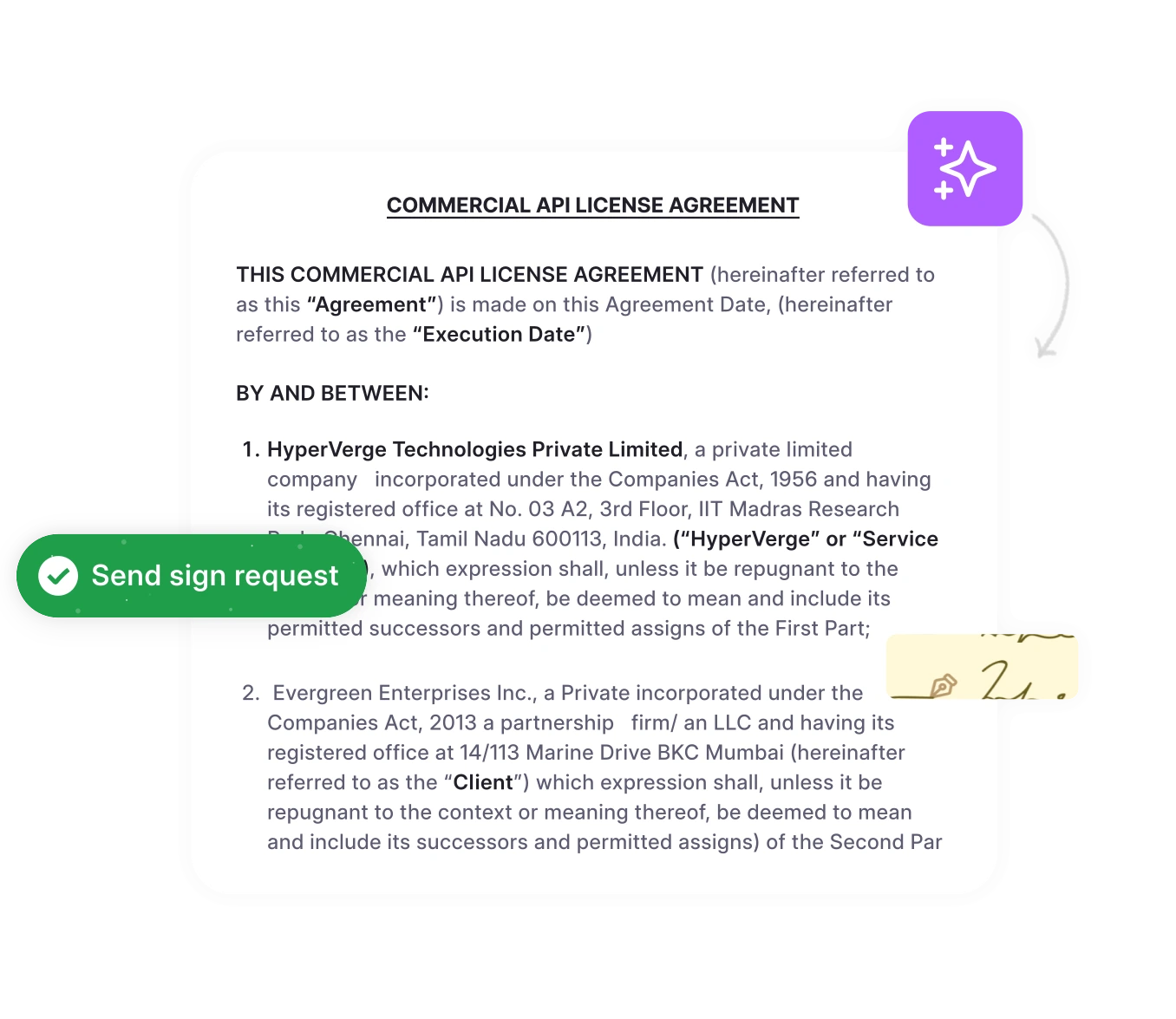




- Redlining in Word uses the Track Changes feature under the Review tab. Press Ctrl + Shift + E (Windows) or Command + Shift + E (Mac) to enable it. All insertions, deletions, and formatting changes are then marked in colored text with strikethroughs and underlines.
- The five steps to redline a document in Word are: enable Track Changes, edit with visible markup, review and accept or reject each change, customize the markup display, and finalize the clean document.
Redlining in Word means using the Track Changes feature to mark insertions, deletions, and formatting edits in a document so that every revision is visible to all reviewers. Open the Review tab, click Track Changes, and every edit from that point forward appears in colored markup.
If you’ve ever managed contract edits in Microsoft Word, you know how chaotic version control can get – edits overlap, key clauses go missing, and it’s hard to tell who changed what. Knowing how to redline a word document is essential for lawyers and legal teams who negotiate contracts, NDAs, and service agreements daily.
Microsoft Word’s “Track Changes” feature is designed to help with document collaboration, but redlining legal contract workflows often demands more than just highlights and strikethroughs.
In this guide, you’ll learn:
- How to redline a contract in MS Word step-by-step
- Where Word falls short in legal review
- Smarter redlining workflows using contract management software
What does it mean to redline a Word document?
Redlining a document means marking up proposed changes (additions, deletions, and formatting edits) so that every revision is visible to all parties involved. The term originates from the legal practice of using red ink to annotate contract drafts during negotiation. In Microsoft Word, redlining is done through the Track Changes feature, which automatically red line edits in colored text with strikethroughs for deletions and underlines for insertions.
A redlined document (also called a “red lined document” or “marked-up document”) serves as the official record of what changed between versions. Legal teams, procurement departments, and compliance officers use redlined documents to compare the original contract language against proposed revisions before accepting or rejecting each change.
Redlining is a standard part of the contract negotiation process.
What is a redline version of a document?
A redline version of a document is the marked-up copy showing proposed changes — text additions underlined, deletions struck through. It is also called a “redlined version.” In contract negotiation, the redline version is shared between parties; the final agreed copy is called the execution version
How to do redlining in Microsoft Word
Redlining a document in Word takes five steps. Here is how to redline a Word document using the Track Changes feature – enable Track Changes (Ctrl + Shift + E), make edits with visible markup, review each change using Accept or Reject, customize the markup display for readability, and finalize the document by accepting all remaining changes. The entire process uses Word’s built-in Review tab and requires no third-party software or add-ins.
Here is a step-by-step process for you to redline in a Word document.
Step 1: Turn on track changes
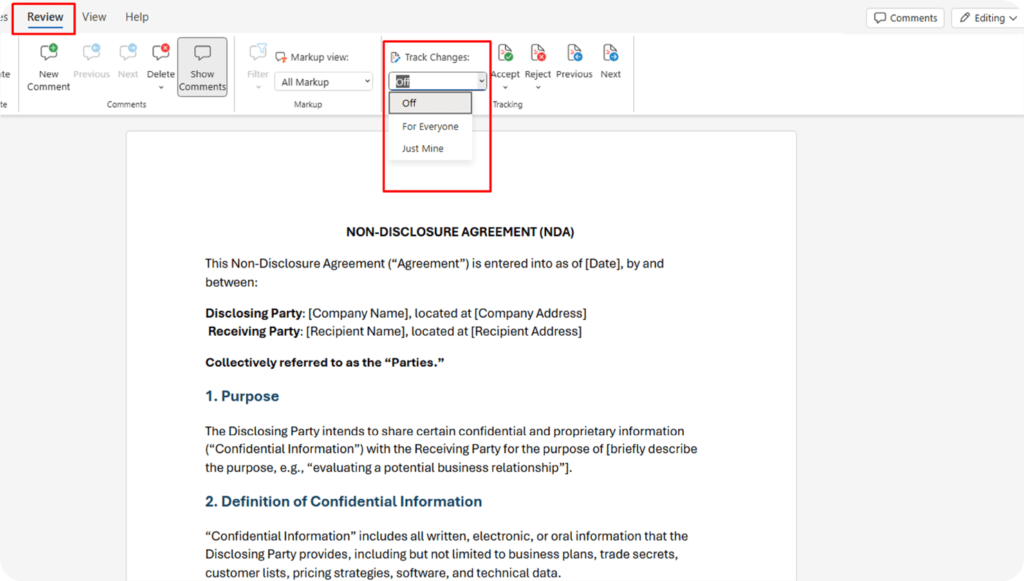
The first step in redlining a document is to enable the “Track Changes” feature in Word. This feature ensures that edits such as insertions, deletions, formatting tweaks, and comment changes are marked for review. Once Track Changes is active, you can do redlines in Word by simply typing, deleting, or reformatting any part of the document.
Steps to enable track changes:
- Open your document in Microsoft Word.
- Click the Review tab.
- In the Tracking group, click Track Changes.
- Once enabled, Word will begin tracking all changes made to the document.
You can also lock this feature using Lock Track to ensure no edits go untracked, especially useful for legal teams or shared contract workflows.
How do you compare two Word documents to create a redline?
Word also has a second redlining method: the Compare feature. Use this when you receive a revised document and need to see all changes at once, without having Track Changes turned on.
Then the 3-step process: Review → Compare → Compare Two Documents → select original + revised.
Step 2. Editing with redlines
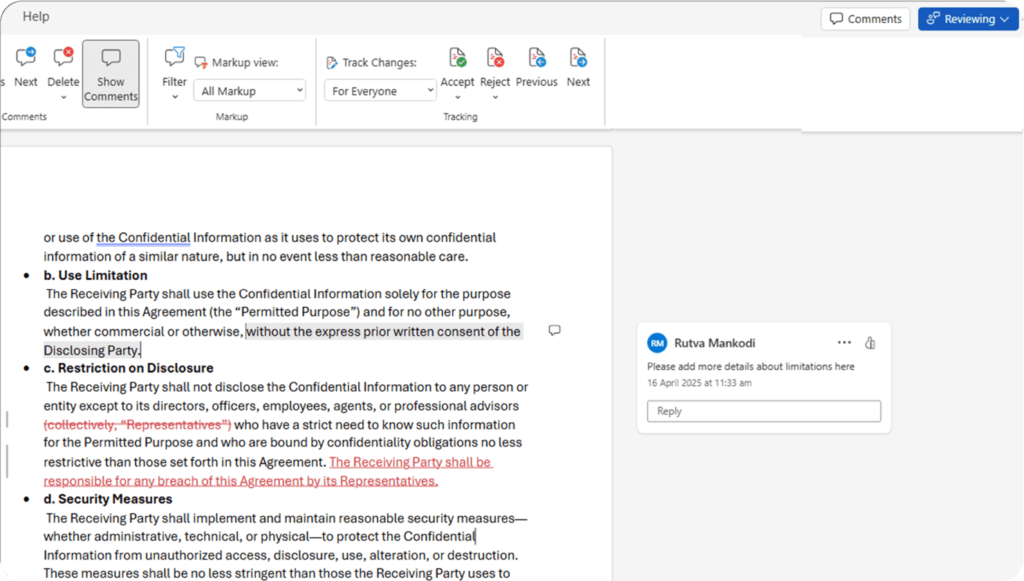
With Track Changes turned on, every revision will be marked in real time using red ink text, underlines, strikethrough text, and margin bubbles, depending on the type of edit. Each red line in a Word document represents a specific change that reviewers must accept or reject before the contract is finalized. When Track Changes is enabled, every redline edit appears as colored text. Insertions are underlined, deletions are struck through. This redline editing process
creates a visible record of every proposed change — also called redline text — without altering the original document structure.
Types of edits that Word will highlight
- Insertions: When you type new text, it will appear underlined and usually in a different color, so what’s been added is clear.
- Deletions: Word uses the strikethrough button to cross out the former text if you remove words. These deletions are often displayed as replacement text or comments in the margin.
- Formatting changes: Edits such as text bolding, italicizing, or text replacing are also tracked. Each formatting change appears with a marker, often indicated by a change in editing color so that the reviewer can distinguish between style and content edits.
Hover your mouse cursor over the highlighted text or use the Reviewing Pane to view additional information about who made the change and when. You can also add a New Comment for further context without editing the core content.
Step 3. Review and approve changes
Legal teams must formally accept or reject every edit to maintain version clarity.
Steps to review changes:
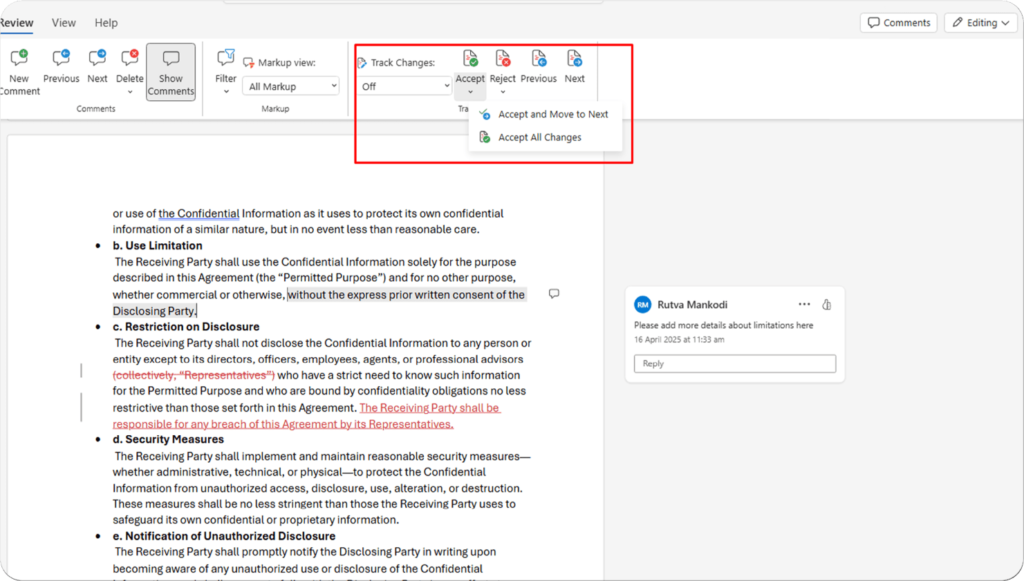
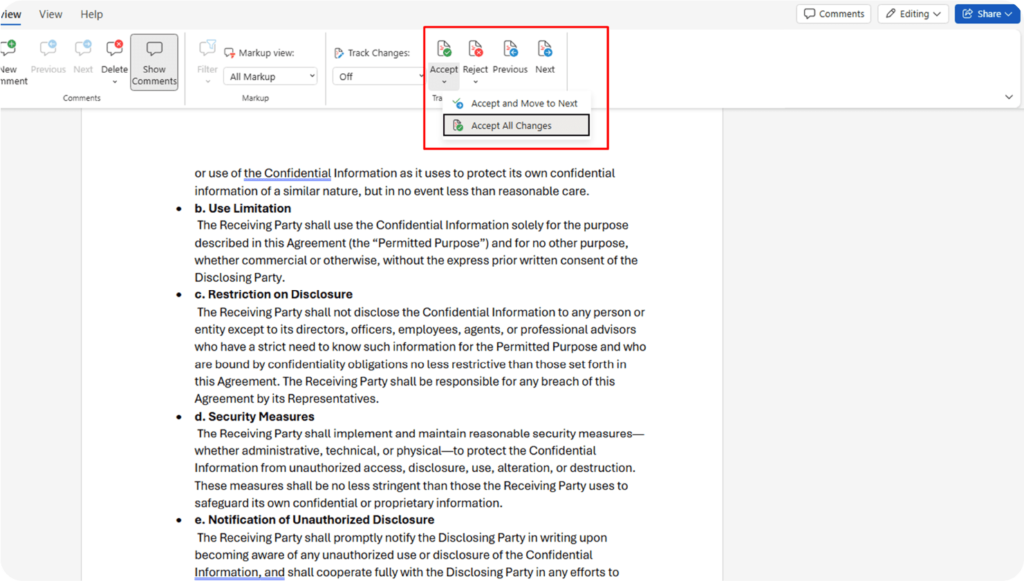
- Under the Review tab, locate the Track Changes group, where you’ll find options to Accept or Reject edits.
- You can go through each change one by one by clicking Accept or Reject. Each time you do this, Word moves to the next change.
- If you want to accept or reject all changes at once, you can use the Accept All or Reject All buttons for quicker processing.
- You can even click the down arrow next to each button for additional options.
You can even click the down arrow next to each button for additional options.
This structured contract review process ensures every revision is approved before finalizing — especially in high-stakes legal agreements.
How do you accept redline changes in Word?
To accept redline changes in Word, go to the Review tab, locate the Changes group, and click Accept to approve each edit individually. Word moves to the next tracked change automatically after each acceptance. To accept all changes at once, click the dropdown arrow next to Accept and select “Accept All Changes.” Rejecting a change works the same way using the Reject button, which restores the original text.
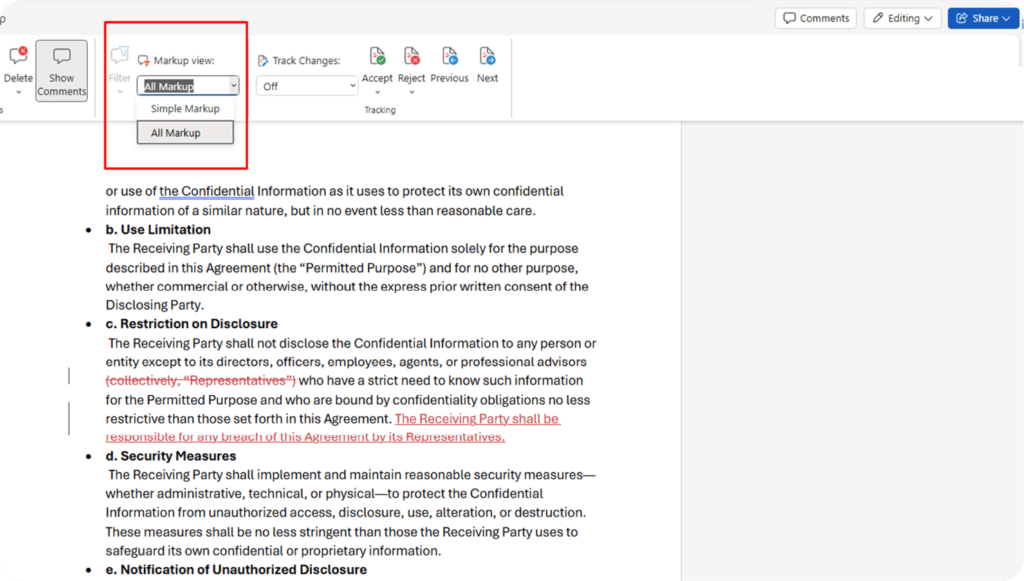
Step 4. Customize how redlines are displayed
To avoid overwhelming visuals especially in documents with heavy editing, you can tweak how changes appear using Word’s Compare feature and markup view settings.
Customizing markup views is especially useful during legal document review, where long contracts with multiple contributors can make it difficult to track changes without visual clutter.
Steps to customize markup views:
- Go to the Review tab.
- In the Tracking section, open the Display for Review drop-down menu to select your preferred view:
- Simple Markup: Shows a clean doc with red lines in the margin. Click the down arrow to reveal hidden changes.
- All Markup: Displays every edit—great for detailed reviews or legal audits.
- No Markup: Hides all tracked changes for a distraction-free read.
- Original: Returns to the document’s original, unedited form.
- Use the Show Markup menu to toggle visibility of comments, formatting, insertions, or filter by contributor using Just Mine.
This allows you to compare documents, identify unwanted sections, and streamline revisions all on one screen without losing track of edits.
How do you change the redline color in Word?
To change the redline color in Word, go to the Review tab, click the small arrow in the bottom-right corner of the Tracking group to open Track Changes Options, then select Advanced Options. From there, you can set specific colors for insertions, deletions, and formatting changes. By default, Word assigns different colors to different authors automatically.
Step 5: Finalizing the document
Once you’ve reviewed all changes and are ready to finalize the document, turn off Track Changes to stop recording edits.
Steps to finalize your document before submission
- Click the Track Changes button again to disable tracking.
- Choose to Accept All or Reject All changes depending on the version you want to keep.
- Select Final from the Display for Review drop-down menu to preview the final redline version.
- Save your updated file as a clean Word document, free of markup and ready to share.
Tired of playing “spot the difference” with contract versions?
HyperStart CLM compares redlined documents side by side, flags risky edits, and helps you finalize faster with zero confusion.
Book a DemoWhat are the limitations of redlining in Word?
Word’s Track Changes feature has eight significant limitations for legal and contract workflows: no centralized version control, no document search or repository, limited real-time collaboration, buried redlines in long documents, broken formatting after heavy edits, no clause-level intelligence, no secure audit trail, and no analytics on review timelines. Each limitation increases the risk of errors during contract negotiation.
| Feature | Word Track Changes | CLM redlining software |
|---|---|---|
| Version control | Manual (Save As with different filenames) | Automatic versioning with full history |
| Real-time collaboration | Limited (OneDrive/SharePoint only) | Built-in for all users |
| Approval workflows | None. Any user can accept or reject | Role-based approvals with routing |
| Audit trail | Can be deleted or overwritten | Immutable, time-stamped log |
| Clause-level control | No. All text treated equally | Clause library with fallback language |
| Redline analytics | None | Cycle time, bottleneck, clause performance reports |
| Cost | Included with Microsoft 365 | Paid (varies by platform) |
While Word’s redlining tool is widely used, it comes with a few drawbacks:
1. Too many versions, no control
Anyone with access to the document can:
- Turn off “Track Changes”
- Accept or reject edits without oversight
- Remove or edit comments
This opens the door to unauthorized or untraceable edits, especially in legal or contractual documents. Such version chaos can lead to serious errors in legal contract management, especially when legal teams lack centralized control over who can make and approve changes.According to World Commerce & Contracting, poor contract management costs organizations an average of 9.2% of their annual revenue, with missed edits and version confusion being leading contributors.
How to solve it:
- A contract management system can assign roles like “Viewer,” “Editor,” or “Approver.”
- Only legal counsel might be allowed to approve changes to risk-sensitive clauses.
- Each action (comment, edit, approval) is logged under the specific user’s ID.
In HyperStart CLM, only legal reviewers can approve changes to indemnity clauses, preventing sales or procurement from making unapproved edits.
2. Can’t find the right contract when you need it
Contracts get lost across email threads, shared drives, and random folders on people’s desktops. When someone needs to find a specific agreement or clause, it can take hours.
How to solve it:
Using a centralized contract negotiation software ensures version control and a single source of truth, so teams always know where the latest contract version lives.
- Everyone accesses a single document, reducing version sprawl.
- Tools like Google Docs, SharePoint, or CLM platforms offer version control, where you can compare versions side-by-side or revert to a previous one with a single click.
- No need to dig through email chains or merge tracked changes manually.
3. Word doesn’t support real-time collaboration
Microsoft Word (especially desktop versions) isn’t optimized for real-time editing by multiple users. Even with OneDrive or SharePoint, live collaboration is:
- Clunky and slow
- Prone to Save conflicts
- Limited in terms of seeing who’s editing what in real time
This slows down workflows, especially when multiple departments (like Legal, Sales, and Compliance) need to weigh in quickly.
How to solve it:
Use platforms with live editing and contextual commenting:
- Google Docs offers real-time collaboration with color-coded cursors.
- Advanced CLMs allow multiple users to redline, comment, and approve sections simultaneously.
Real-time collaboration significantly shortens the negotiation cycle, making internal reviews more efficient.
4. Redlines get buried in long documents
Contracts and policy documents often run 20–50 pages or more. In such long texts:
- Tracked changes may be hidden in collapsed sections.
- Reviewers may accidentally skip over key redlines.
- Important changes can be buried under dozens of cosmetic edits.
How to solve it:
In these situations, understanding how contract review automation works can help legal teams explore smarter ways to flag critical clause edits and summarize what has changed—without manually scanning every page.
- Flag changes to high-risk clauses (e.g., payment terms, liabilities)
- Summarize what has changed since the last version
- Prioritize changes that deviate from your standard templates or fallback clauses
Some contract redlining software even alerts reviewers when a clause has been altered beyond approved thresholds.
5. Redlining in Word often breaks document structure
As tracked changes accumulate, the document’s structure often falls apart:
- Section numbering becomes inconsistent
- Bullets or indentations get misaligned
- Footnotes, headers, and tables can break
These visual and structural issues make documents hard to read and error-prone, especially during final reviews or client presentations.
How to solve it:
- Use pre-formatted templates in CLM tools to ensure consistency.
- Set editing guidelines to accept/reject redlines before formatting.
- Limit the number of manual formatting changes during the review phase.
Templated contracts and document automation platforms ensure a polished, professional output even after heavy editing.
6. No clause-level standardization or intelligence
Word treats all text equally. It doesn’t know:
- Which clause is a legal boilerplate
- Which section must never be altered
- What acceptable fallback language should be used if a clause is rejected
This leads to inconsistent language, missed risk factors, and inefficient negotiations.
How to solve it:
Use a platform with a smart clause library, where:
- Standard, fallback, and alternate clauses are pre-approved by legal
- You can insert clauses with one click
- AI suggests alternate language if a clause is modified or rejected
This streamlines negotiation, especially across similar contract types (e.g., NDAs, MSAs, SLAs).
7. Word lacks a secure, trackable audit history
In Word, there’s no way to verify:
- Who made specific edits (especially if edits are made with Track Changes turned off)
- Whether unauthorized changes were made
- When a change was made and by whom
How to solve it:
Platforms like CLMs or secure document editors log every activity:
- Time-stamped, user-tagged edit history
- Immutable audit trails for compliance
- Alerts if someone attempts to modify a locked section
8. No visibility into review timelines or clause performance
Word gives no visibility into:
- How long a contract took to review
- How many redlines were made per section
- Which clauses consistently trigger back-and-forth
How to solve it:
Using redlining software with built-in analytics dashboards helps legal teams gain visibility into contract review cycles and identify areas that consistently slow down negotiations.
- Review timelines and bottlenecks
- Clause performance over time
- Team and stakeholder activity metrics
Losing track of redlines in long contracts?
HyperStart CLM automatically flags significant clause changes and tracks every revision without missed edits or buried redlines.
Book a DemoHow does CLM software improve the redlining process?
CLM (contract lifecycle management) software improves redlining by adding version control, role-based approval workflows, automated audit trails, and clause-level tracking on top of Word’s Track Changes feature. In HyperStart CLM, for example, internal teams and counterparties redline contracts within a centralized platform that automatically creates new document versions, logs every edit, and routes changes to the correct approvers. HyperStart deploys in 4 weeks.
Fast and automated workflows, No need for separate databasing, Saves time and effort across the contract process
Kavitha I., Senior Legal Associate, Mid-Market company (G2, August 2025)
While Microsoft Word’s Track Changes feature is commonly used for redlining, HyperStart CLM—an automated contract management solution with AI contract review capabilities can enhance the process by adding advanced workflow and approval features.
Here’s how redlining works in a smarter contract workflow:
1. Internal approval process
- Step 1: When the document is ready for review, you will receive an email notification from HyperStart CLM. This email will notify you that the document is prepared for internal approval.
- Step 2: Open the document within HyperStart CLM, where the Track Changes feature is already enabled. From here, you can start editing the document, deleting, adding, or modifying text as necessary.
- Step 3: As you make changes, HyperStart CLM automatically updates the document and creates a new version (V2) on the platform, ensuring all revisions are tracked and recorded.
- Step 4: After completing your edits, you can review the changes or pass it to the next approver. The next person in the approval chain can either accept or reject the changes, which results in a new version (V3) being created automatically on the platform.
2. Counterparty approval
- Step 1: Once all internal approvals are completed, send an email to the counterparty (external party) requesting their input.
- Step 2: The counterparty will receive an email notification from HyperStart CLM with the document attached.
- Step 3: They will make their changes and send the document back to you via email.
- Step 4: HyperStart CLM will automatically update the platform with the new version of the document.
- Step 5: You can now compare the two versions directly within HyperStart CLM. Use the platform’s tools to accept or reject changes, similar to traditional redlining but with more control and easier comparison.
3. Clause approval
- Step 1: HyperStart CLM allows you to focus on specific clauses within the document. For instance, you might want the Finance team to approve the “Commercials” clause.
- Step 2: The relevant approver (e.g., the Finance team) is notified via email, and they can approve or reject the clause directly within HyperStart without needing to read the entire document.
4. Tracking and notifications
- Email & Slack Notifications: Throughout the process, HyperStart CLM sends automated email or Slack notifications to keep everyone informed of document updates, approvals, and rejections.
- Version Control: Each update to the document is automatically tracked with version control, allowing you to see all changes made over time.
- Activity Logs: Both internal and external activity logs are maintained, ensuring full transparency of who made changes and when.
Redlining in Word works well until it doesn’t. If you’re handling complex contracts, managing multiple stakeholders, or aiming for speed and compliance, it’s time to move beyond Word. Redlining in Word works well until it doesn’t. If you’re handling complex contracts, managing multiple stakeholders, or aiming for speed and compliance, it’s time to invest in contract management software that goes beyond Word.
Ready to upgrade your redlining process? Book a demo today.




![A Guide to Contract Redlining [Challenges + Solutions + Top Software Tools]](https://www.hyperstart.com/wp-content/uploads/2024/07/Blog-82-purple-scaled.webp)