


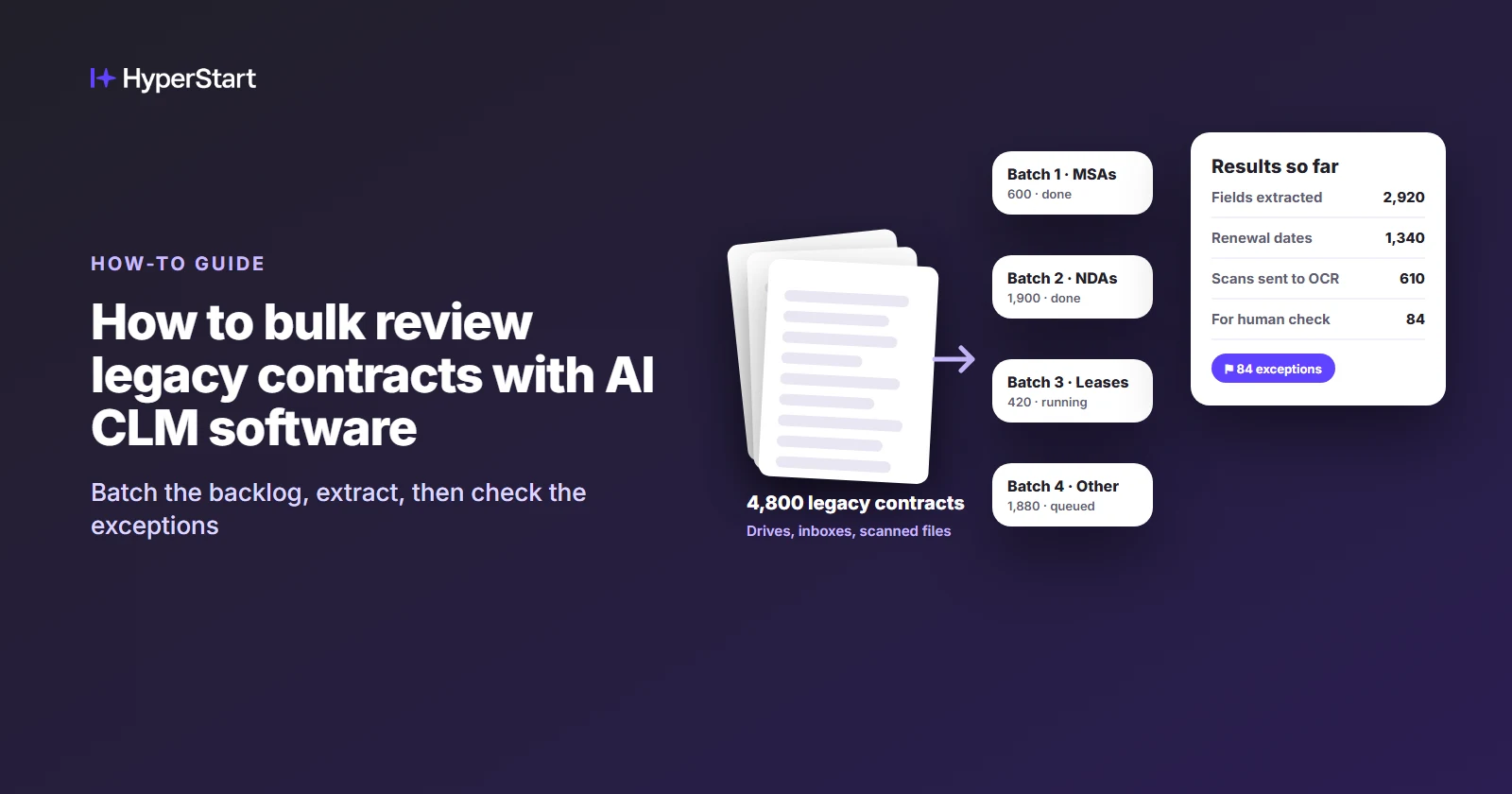
To bulk review legacy contracts with AI contract lifecycle management (CLM) software, upload the backlog in batches and run OCR on scans. Let the AI extract the fields you need, and have people review only what it flags. The checked data then goes into a searchable repository with renewal reminders.
Optical Character Recognition (OCR) turns scanned pages into text the AI can read. This is often the first big job for a new legal or operations hire. Treat it as a data-quality project, not a file transfer.
- Run a pilot batch across all your contract types before you upload the whole backlog.
- Scanned files need OCR first, and faded scans or handwritten dates need a person to check them.
- Agree the field list and your playbook positions before extraction, so the AI flags deviations instead of only copying text.
- People review the flagged and uncertain fields against the source text, not every contract.
- Switch your system of record only after a sample of every contract type passes a field-by-field check.
Before you start: what to know
Three answers decide how the review is set up. Have them before you upload anything.
- Volume: Get a rough count of the legacy contracts and how many are scanned images rather than text PDFs or Word files. Scans need OCR, and handwritten dates or signatures need a person.
- Contract types: List the agreement types you hold, such as NDAs, master services agreements, statements of work, vendor agreements and amendments. Batching by type gives the AI consistent documents to read.
- Key fields: Decide which fields you need from every contract, and which clauses count as risk. Keep the list to the dates, parties, money terms and risk clauses people actually ask about.
How to bulk review legacy contracts in six steps
The six steps are: scope and pilot, upload and OCR, define the fields, extract in batches, review the exceptions, then link families and publish.
Step 1: Scope the portfolio and run a pilot batch first
Scope the work before you migrate everything. Not every file deserves the same attention, and the first batch is a test.
- Deduplicate: Remove exact copies and near-duplicates, such as the signed PDF next to three unsigned Word drafts, so the AI does not extract the same contract twice.
- Tier by value and risk: Put active, high-value and high-risk agreements in the first tier. Low-value and expired paper can follow later.
- Pilot a sample: Run 25 to 50 contracts through the full process before scaling. NetDocuments’ AI contract review guide recommends testing on at least 25 to 50 agreements for meaningful results. Pick the sample across contract types, not just the cleanest files.
Step 2: Gather, bulk-upload and run OCR on scanned files
Collect legacy contracts from shared drives, email attachments, local folders and filing cabinets.
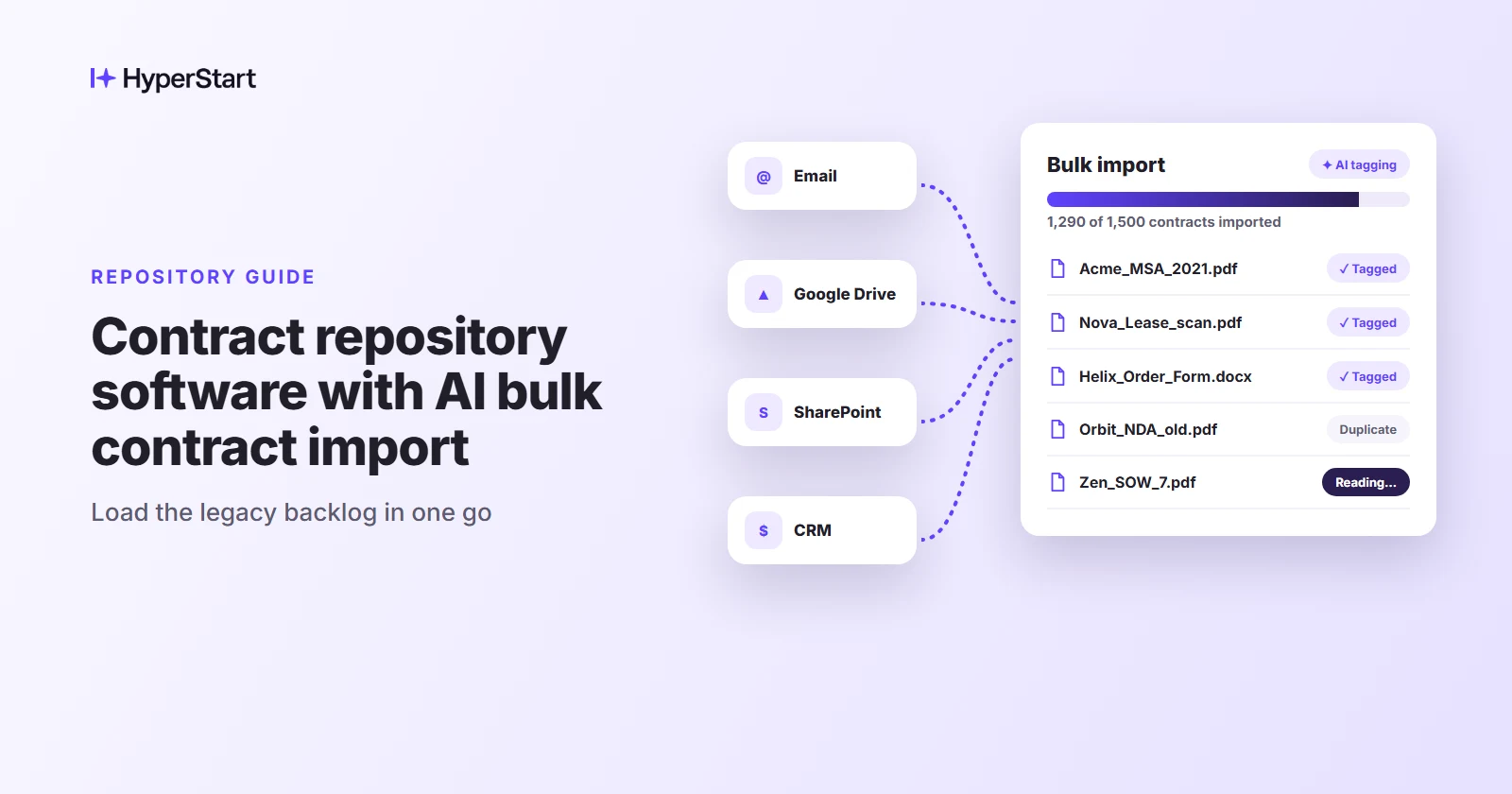
- Bulk-upload by type: Load the files in batches grouped by contract type, so each batch reads consistently. Ask your vendor for its batch and page limits in writing before you start.
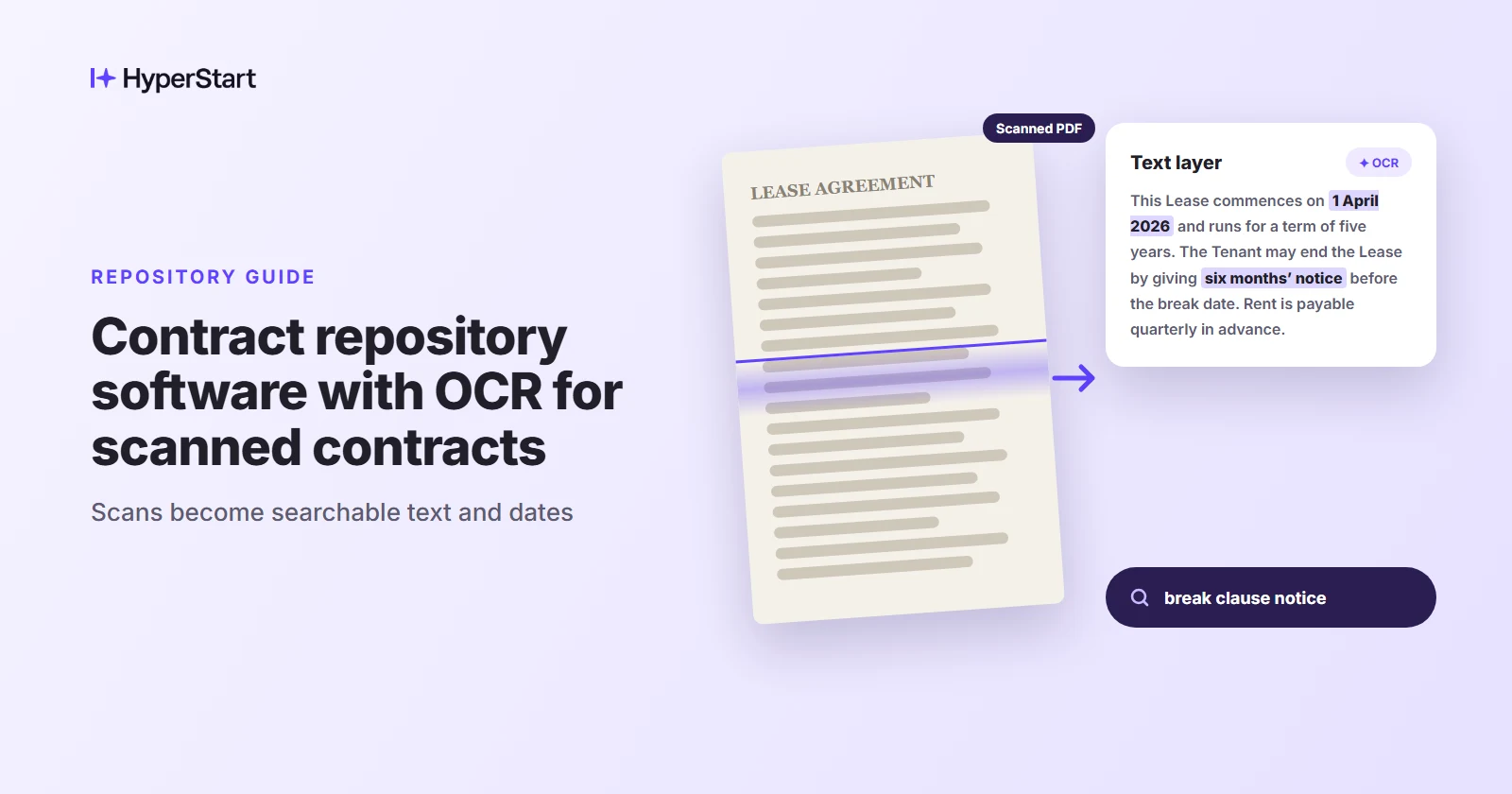
- Run OCR on image files: OCR converts scanned or image-based PDFs into machine-readable text. Natural language processing (NLP) can only read a contract once that text exists.
- Flag what OCR can’t read: Faded scans, handwritten signatures and handwritten dates often come through wrong. Mark those files for a person to check rather than trusting the output.
Step 3: Define the fields and the standards to compare against
Define what the AI should pull out and what “acceptable” looks like before metadata extraction begins.
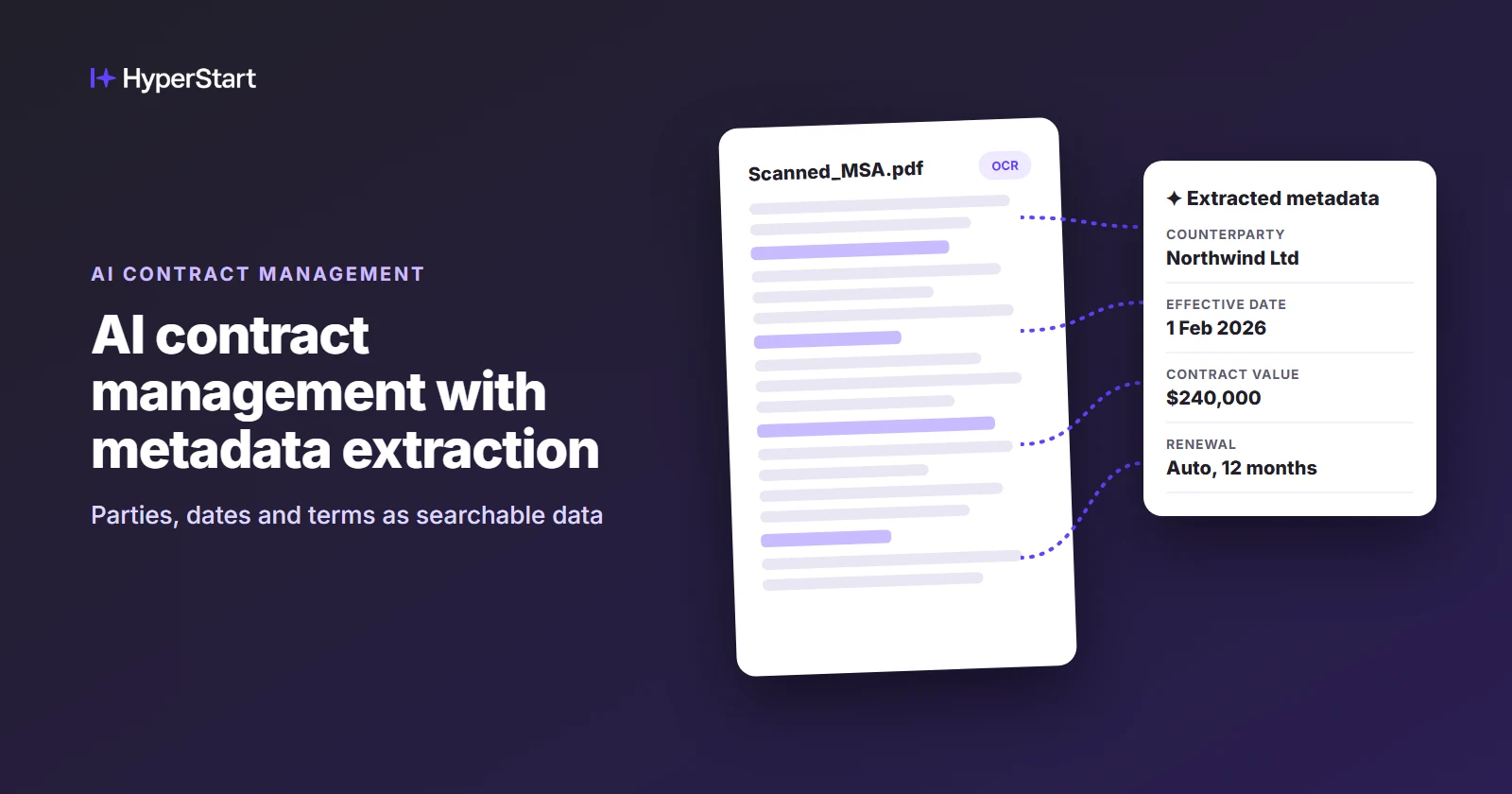
- Field list: For most portfolios this means effective, expiration and renewal dates, notice periods and auto-renewal terms. Add liability caps, indemnification, governing law, payment terms and counterparties.
- Playbook: Write down your standard positions, such as an acceptable liability cap, so the AI can flag deviations instead of only extracting text.
- Your own entity names: Enter your company and subsidiary names. Otherwise the AI may tag your own entities as the counterparty.
Step 4: Batch-extract metadata and score confidence
Extract the agreed fields across the whole batch at once. Bulk review earns its time here, because the AI reads every contract in the same pass.
- Confidence scores: Good tools attach a confidence level to each extracted field. Low-confidence fields go to a review queue rather than straight into the repository.
- Risk labels: Clauses that break your playbook are flagged, often as low, medium or high risk, so the riskiest contracts surface first.
- Outliers stand out: Suppose most of your vendor agreements give 30 days’ written notice to terminate, and one gives 10 business days. In a side-by-side field view, that one contract is obvious in seconds. Reading contracts one by one, it is easy to miss.
Step 5: Review flagged and low-confidence items against the source text
Review only the exceptions. The AI makes the first pass across the portfolio, and your people handle what it flagged or wasn’t sure of, not every contract.
- Check against the source: Compare each flagged field with the highlighted clause in the original document before you accept it.
- Fix, don’t just approve: Correct wrong values in the record itself. A corrected field is data you can rely on. A clicked-through flag is not.
- Hand reviewers a summary: Route high-risk contracts to legal with the issues already listed. The reviewer then starts with a decision, not a full read.
Step 6: Link contract families and publish to the repository with renewal alerts
Link amendments, statements of work and renewals to the master agreement they modify. Then publish the validated records to a central, searchable repository.
- Contract families: An amendment read on its own can show a liability cap or end date that has since changed. Linking parent and child records shows the terms that apply now.
- Search and filter: Teams can find every contract with a capped liability through search and filters instead of opening folders.
- Renewal and notice alerts: Set reminders on expiration dates and notice windows, so auto-renewals are a decision rather than an accident.
- Export when needed: Pull field data to .CSV for finance, audits or repapering projects.
How do you know the extracted data is ready to trust?
The extracted data is ready to trust when a sample from every contract type passes a field-by-field check against the source text. Until then, the shared drive stays the reference copy.
Teams work around a repository they don’t trust, so make the switch at an acceptance gate, not on a launch date.
A five-point acceptance gate a two-person team can run:
- Sample by type: Take a stratified sample with a few contracts from each contract type and each tier, including scans, not just clean Word files.
- Measure by field, not by document: Score each field (expiration date, notice period, liability cap, governing law, counterparty) separately against the source text. A contract can be “mostly right” and still carry the wrong renewal date.
- Set a bar per field: Decide in advance how many errors you will accept for each field. Date and notice fields deserve the strictest bar, because they drive renewal tracking.
- Route below-bar fields to review: Any field type that misses the bar goes back through Step 5 for every contract in that batch, not just the sampled ones.
- Switch the system of record last: Retire the shared drive as the reference copy only when every critical field type has passed.
For how to read accuracy claims and score a pilot, see our guide How accurate is AI contract review in CLM software?
See HyperStart CLM on your own contracts
Bring a few of your own contracts, and we’ll run them through HyperStart with you in a live demo.
Book a DemoThree ways to bulk review legacy contracts
You can key fields in by hand, use an AI tool that reads one document at a time, or use CLM software that imports and extracts in bulk. The table compares the three routes and one CLM option.
| Reading and keying fields by hand | AI tools that review one document at a time | CLM software with bulk import | HyperStart | |
| How review works | A person reads every contract and types fields into a spreadsheet | AI extracts per document, or after you build the field setup yourself | AI extracts across whole batches, and people review the exceptions | AI extracts key terms, dates, parties, obligations and clauses, and your team can review and refine each field |
| Time to a usable record | Grows with every contract added | Depends on how much setup you do yourself | Weeks, if migration is part of the rollout | Live in weeks |
| License | Staff time only | Subscription. Check whether bulk import is a separate add-on | Subscription. Ask for the license price on its own line | Custom quote scoped to contract volume or users, on an annual plan |
| Implementation and migration | Not applicable | Usually your own effort | Varies. Some vendors include it, others quote it as a separate project | Included at no extra fee, and the HyperStart team supports the migration |
| Contract families | Only if someone links them manually | Often per document, without parent-child links | Depends on the product. Ask to see an amendment rolled up to its master agreement | Amendments link to the parent agreement, and metadata rolls up across the family |
| After the review | A spreadsheet that goes stale | Extracted data, often outside your contract process | The same system runs new contracts and renewals | Renewal and obligation tracking runs from the extracted dates, with email reminders |
Whichever route you choose, compare quotes with license and implementation as separate lines. A license price on its own is rarely the total you will pay.
What a new hire should do in the first 30 days
If you’ve just inherited the contract estate, do these before any software decision:
- Map where contracts actually live. Ask sales, finance, procurement and HR where they keep signed copies. Email attachments often hold the only signed version.
- Ask who is worried about which renewal. Finance and procurement usually know which vendor agreements renew soon and nobody has decided on. Put those in your first tier and on an interim renewal list.
- Write down the questions people keep asking you. “When does this end?” and “What’s our cap with them?” are your field list in plain language.
- By day 30: Have a deduplicated inventory, a tiered list, an interim renewal tracker, and a pilot batch ready for Step 1.
Security review: what to have ready
Your IT or security team will review any tool before legacy contracts are uploaded, so ask each vendor for its certification reports early.
Look for SOC 2 Type II and ISO 27001, plus HIPAA compliance when old contracts carry patient-data terms. Role-based access lets you limit who sees sensitive legacy paper while the migration runs.
Your legacy review checklist
Before the first batch goes in, have these four things ready:
- A deduplicated inventory, tiered by value and risk, with scans marked.
- A short field list and written playbook positions for your top contract types.
- A named reviewer for each contract type and a pass bar for every critical field.
- An interim renewal list for anything that ends in the next few months.
With those in hand, the software choice is mostly about getting files in. HyperStart offers bulk import through email sync, a Google Drive or SharePoint URL or a CRM import.
Its OCR means metadata extraction works on scanned legacy contracts too. Book a demo and bring a batch of your oldest scans to test it.
Try HyperStart CLM before you decide
The whole contract lifecycle in one product, live in weeks, with implementation included in the quote and no implementation partner.
Book a Demo